
Soundcore
AnkerTools
3.98.11K Reviews
- Version
- 5.0.21
- Installs
- 10.00M
- Age Rating
- Everyone
Screenshots

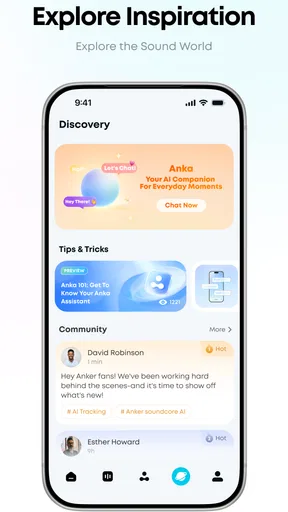
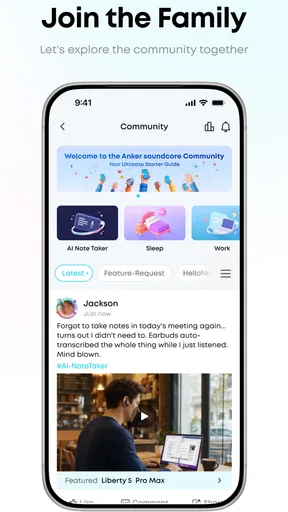
Our Review of Soundcore
 Analysis by Appyee
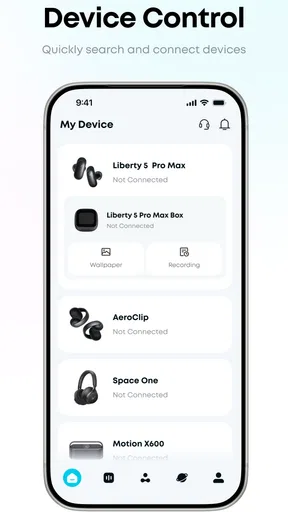
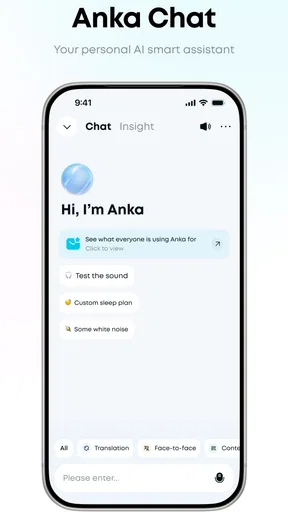
I spent time with Soundcore as a companion app for Anker audio equipment, and my overall impression is that it works best when you treat it as a control panel rather than as a general music app. Its store summary, “See what you hear,” points to the central idea: the app helps you adjust and manage compatible Soundcore listening devices instead of replacing your preferred music or podcast service.
That distinction matters. If you already own supported Anker headphones, earbuds, or speakers, the app can make the hardware feel more personal and easier to maintain. If you are only looking for an equalizer, a music player, or a way to improve audio from any brand, this is not the right tool. I would recommend it to someone who has invested in the Soundcore range and wants more control than the basic Bluetooth settings on a phone provide.
How Soundcore fits into everyday listening
Soundcore is a free Tools app developed by Anker, with an Everyone content rating and support for Android 8.0 or later. It has passed the ten-million-install mark, carries an average rating of 3.9 from roughly 129 thousand ratings, and is currently listed at version 5.0.21. Those figures suggest a widely used companion app, although the rating also tells me that the experience is not universally smooth for every device, phone, or user.
The first useful change is that the app gives your audio hardware a proper home. Instead of opening a phone’s Bluetooth page every time you want to check or adjust something, you can use the Soundcore interface to work with the connected product. The exact options depend on the device, so I would not assume that every earbud or speaker exposes the same controls. That variation is one of the most important things to understand before installing it.
For ordinary listening, I found the app most valuable when I wanted to move beyond a single default sound profile. A phone’s system settings usually offer very little control over a pair of wireless headphones. Soundcore is designed to put those device-specific choices in one place. That makes it more practical for people who switch between spoken audio, music, video, and calls throughout the day.
A realistic example is a commute followed by desk work. On the way out, I might want a stronger, more energetic presentation for music. At a desk, I may prefer a less forceful balance for podcasts or long video sessions. With a compatible Soundcore product, the app can become the place where I make those adjustments instead of repeatedly searching through general Android settings. The benefit is not that it creates a new pair of headphones; it makes the pair you own easier to adapt.
Why the device connection matters more than the app alone
Soundcore should be judged together with the Anker hardware it supports. The software is unlikely to feel especially useful if you do not have a compatible product nearby. This is different from a standalone equalizer, which may affect audio from several sources or brands. Soundcore’s strength is its direct relationship with supported devices, while its limitation is the same: its usefulness is tied to that ecosystem.
I would also avoid installing it with the expectation that it will automatically improve every Bluetooth accessory connected to your phone. Companion apps generally depend on the device model and its available firmware or control features, and Soundcore is no exception in practical terms. Before relying on it for a particular function, check that your exact Anker product is recognized and that the option you want appears for that model.
That model-by-model approach is a small but important trade-off. It can provide controls that a generic audio utility cannot, but it also means the app may feel uneven if you own more than one Soundcore product. One device may expose several useful settings while another offers only basic management. I see that as a reason to explore the app after connecting the hardware, rather than judging it from the app name alone.
Trust begins with visible choices
Because Soundcore connects to audio equipment, I paid attention to moments when the app asks me to make a choice. The most trustworthy way to use a companion app is to keep those choices deliberate: connect only the device I intend to manage, review any account screen before continuing, and avoid enabling anything that does not serve my purpose. I prefer apps that let me understand why a setting is needed instead of encouraging me to accept everything immediately.
Soundcore is not something I would install casually on a phone with no Soundcore hardware. The sensible approach is to begin with a clear reason, such as configuring earbuds or managing a speaker, and then check which screens and controls are actually relevant. This keeps the app’s role narrow and makes it easier to notice when a request or account step is unrelated to the task I came to complete.
I also recommend using the app with the same care I would apply to any connected-device software. Keep the application updated through the normal store, use a strong device lock, and remove old products from your routine if you no longer use them. These are simple habits, but they matter more than chasing every available setting. A companion app should reduce friction, not become another place where forgotten devices and unused accounts accumulate.
Account controls and the value of staying selective
Some people will want the quickest possible setup and may prefer to move through every prompt without stopping. I take the opposite approach. If Soundcore presents an account option, I would first ask whether I need that account for the specific feature I want. If the app lets me manage a device without adding optional profile information, I would keep the setup minimal.
This is not because I assume a problem; it is because user control is stronger when I understand what I am choosing. A device companion can be convenient without becoming a central part of my digital identity. I would use only the controls that support listening, configuration, or maintenance, and I would revisit account settings later if I decide that a connected feature is genuinely worthwhile.
There is also a practical reason to keep track of account access. If you share headphones or a speaker with family members, one person should know which account or phone is managing the product. Otherwise, a later setup can become confusing, especially when several phones have previously connected. Clear ownership and a short list of active devices are more useful than simply leaving every old connection in place.
Data-sensitive moments during normal use
The most sensitive moments are not necessarily the audio settings themselves. They are the points where the app may ask for information, request access on the phone, or encourage an account-based workflow. I would read those screens rather than treating them as routine pop-ups. If a permission does not appear relevant to connecting or controlling my Anker device, I would pause and investigate its purpose before approving it.
I would apply the same caution to notifications. A notification can be helpful when it relates to a device state or an action I deliberately started, but unnecessary alerts quickly make a utility feel intrusive. My preference is to allow only the notifications that help me manage the hardware. If an alert does not improve my daily use, I would turn it off in the phone’s settings.
Bluetooth access is naturally central to a wireless-audio companion, but I still like to make the connection at a moment when I am actively setting up the product. That makes it easier to identify which device is being paired and to avoid accidentally changing the wrong accessory. When several Bluetooth products are nearby, a little patience at this stage can prevent a surprisingly annoying troubleshooting session later.
Location-related prompts deserve the same careful reading on Android because some phone versions have historically associated nearby-device discovery with location access. I would not interpret a prompt automatically as evidence of tracking, nor would I accept it without understanding the phone’s explanation. The useful rule is simple: inspect the wording, grant only what the operating system and app clearly connect to the task, and revisit the permission afterward.
I also would not use Soundcore as a place to store sensitive personal information unless a feature clearly requires it and I am comfortable with that exchange. The app’s purpose is audio-device control. Keeping my use focused on that purpose gives me a cleaner privacy boundary and makes it easier to decide whether an optional feature is worth enabling.
Where the app earns its place
The strongest case for Soundcore is personalization. A generic Bluetooth menu can connect a device, show a battery state, and sometimes expose a few system controls, but it usually does not feel designed around the particular headphones or speaker. Soundcore’s dedicated approach is more useful when I want to tune the listening experience, organize device-related settings, or check whether the product is behaving as expected.
That makes it a good fit for listeners who know what they want to change. Someone who notices that vocals sound recessed, bass feels too heavy, or long listening becomes tiring will probably get more from the app than someone who always uses factory settings. The app gives that first group a way to experiment rather than accepting the default sound indefinitely.
One non-obvious benefit is that customization can be used as a problem-solving tool, not only as a preference. If a podcast sounds muddy, I can test a clearer profile before assuming the headphones are faulty. If music feels thin, I can compare another setting before changing the source app. This does not solve every audio issue, but it helps separate a tuning preference from a hardware or connection problem.
Another useful workflow is to make one change at a time. It is tempting to alter several controls together and then forget what improved the sound. I prefer to adjust a profile, listen to a familiar track or spoken segment, and then decide whether the change is worth keeping. That method is slower at first but produces a more reliable result than constantly switching between dramatic presets.
I would also use the app as a diagnostic checkpoint. When audio behaves strangely, I would confirm that the intended Soundcore device is connected, check whether the app recognizes it correctly, and compare the result with another source. If the problem appears only in one music app, the issue may be there rather than in the headphones. This simple separation saves time and prevents unnecessary resets.
Where the experience can become frustrating
The main weakness is that a companion app adds another layer between you and your headphones. Bluetooth already has enough opportunities for confusion, and a separate app can make the process feel heavier when all you wanted was to listen. If your Soundcore product works perfectly with its default settings, you may open the app only occasionally, which makes the extra installation and maintenance harder to justify.
Version 5.0.21 is the current version listed for the app, but an up-to-date app does not guarantee an identical experience on every Android phone. Different operating-system behavior, battery restrictions, Bluetooth implementations, and device firmware can all affect how a companion app feels. If connection drops occur, I would first check battery optimization and Bluetooth settings on the phone before blaming the audio hardware.
The rating of 3.9 is another reason to keep expectations realistic. It is not a warning that the app is unusable, but it suggests that some users encounter friction. In my view, the likely dividing line is whether you need the device-specific controls. Those controls can justify a little setup work; without them, the app may feel like an unnecessary middle step.
There are also financial details worth noticing. The app is free to install, but its listing includes in-app purchase items ranging from five cents to $239.99. I would not assume that every user needs to buy anything, and I would review each purchase screen carefully before confirming it. For a tool whose basic purpose is managing audio hardware, unexpected purchase prompts would be a reason for me to slow down and check exactly what is being offered.
Who should use it, and who should skip it
I would recommend Soundcore to someone who owns compatible Anker audio equipment and wants more control than a phone’s standard Bluetooth panel provides. It is especially suitable for people who switch between music and spoken audio, care about sound balance, or want a dedicated place for device-related settings. It also makes sense for a household where one person regularly manages a Soundcore speaker or a pair of earbuds and wants repeatable adjustments.
I would be more cautious if you own several brands and want one universal control app. Soundcore is not a neutral manager for every accessory; its value comes from the Anker connection. A platform-neutral utility may be a better match if your main goal is to apply one equalizer workflow across unrelated headphones, although generic tools may not offer the same device-specific integration.
I would also skip it if you are satisfied with the default sound, rarely change settings, and dislike creating accounts or handling companion software. In that situation, the ordinary Bluetooth menu may be enough. The app is most convincing when it solves a real problem for your particular device, not when it is installed simply because it is available.
My cautious verdict on Soundcore
After using Soundcore as a device companion, I see it as a practical but purpose-built utility. Its best qualities come from being tied to Anker hardware: it can make compatible headphones and speakers more adjustable, more understandable, and easier to fit into different listening routines. Its weaknesses come from that same design, because users without compatible equipment gain little and users with simple needs may not want an extra layer of software.
My advice is to install it with a specific task in mind, connect only the intended device, and treat every permission, notification, account prompt, and purchase screen as a choice rather than an automatic step. That approach keeps the experience focused and gives you a clearer sense of whether the controls are worth keeping.
Soundcore is worth trying when its device-specific controls solve a problem you actually have. I would not call it essential for every Anker owner, but I would keep it on my phone if I regularly adjust listening profiles or manage compatible equipment. For everyone else, the standard Bluetooth tools—or a genuinely brand-neutral audio solution—may be simpler and better aligned with the way they listen.
Verdict
Strengths of Soundcore
- Strong audio quality with clear detail and punchy bass.
- Many models support customizable EQ settings in the app.
- Useful features include noise cancellation and transparency modes.
- Battery life is generally excellent across Soundcore devices.
- The app makes firmware updates and device management convenient.
Limitations of Soundcore
- Some advanced features work only with selected Soundcore models.
- Sound profiles can vary noticeably between different product lines.
- The app may request several permissions during initial setup.
- Noise cancellation performance is not equally strong on every device.
- Premium models can be relatively expensive compared with basic alternatives.
Other Releases by Anker
View All
Anker eufy
Lifestyle4.5
Similar Picks in This Category
View All
Google LLC4.0

Gboard - the Google Keyboard
Google LLC4.5

Google Play services
Google LLC4.3

Google Play Store
Google LLC4.9

Files by Google
Google LLC4.5

SHAREit: Transfer, Share Files
Smart Media4U Technology Pte.Ltd.4.3
Frequently Asked Questions
What is Soundcore, and what can I use the app for?
Soundcore is the companion app for compatible Anker Soundcore headphones, earbuds, speakers, and other audio products. After connecting your device, you can adjust the equalizer, choose listening modes, manage noise cancellation, update firmware, customize controls, and access product-specific settings. The available options depend on the exact Soundcore model you own, so some features may not appear on every device.
Is the Soundcore app compatible with Android and iPhone?
Yes, Soundcore is available for both Android and iOS devices. Before downloading, check that your phone meets the current operating-system requirements listed in its official app store. Bluetooth must also be enabled, and the app may request permissions such as nearby-device access or Bluetooth access to find and connect with your Soundcore headphones, earbuds, or speakers.
How do I connect my Soundcore headphones or earbuds to the app?
First, charge the Soundcore product, turn on Bluetooth, and place the headphones or earbuds into pairing mode. Open the app and follow the device-connection instructions. If the product does not appear, make sure it is not connected to another phone, move it closer to your device, and restart Bluetooth. Resetting the accessory may help when an earlier pairing is causing connection problems.
What features does Soundcore provide after my device is connected?
The app offers more than basic Bluetooth playback controls, although the exact tools vary by product. On supported models, you can select or customize equalizer presets, adjust active noise cancellation and transparency modes, remap touch controls, configure gaming or spatial-audio features, check battery levels, and install firmware updates. These settings make it easier to personalize the sound and controls for everyday use.
Does Soundcore require an account, and is it safe to use?
Many basic connection and playback functions can be used without creating an account, but Soundcore may request sign-in for certain services, device management features, support options, or product-related benefits. As with any connected app, review the permissions and privacy information before continuing. Downloading from the official Google Play Store or Apple App Store is the safest way to obtain the legitimate application.
